Microsoft Workloads on AWS
Advanced bootstrapping on Amazon Elastic Compute Cloud (Amazon EC2)
When building Amazon Elastic Compute Cloud (Amazon EC2) instances, you often bootstrap them to accomplish basic tasks, like OS/application configuration, domain join, installing software, and configuration at scale. However, as configurations grow more complex, requiring multiple steps such as hostname changes, domain joins, and software installations, relying solely on a single bootstrap method can lead to failures, race conditions, and configurations that are difficult to troubleshoot or scale. Understanding the available bootstrap approaches and their capabilities is essential for successful deployments.
In this blog, we will examine different bootstrap methods and explain how each method can be used for complex, multi-step configurations. While we’ll cover these tools and methods individually, it’s important to note that most real-world scenarios will require a combination of these approaches to accomplish different tasks effectively.
We’ll explore each of these bootstrap tools and methods in detail, discussing their capabilities and use cases. We will also show how AWS CloudFormation templates can be used to deploy these approaches as infrastructure-as-code.
Prerequisites
This blog covers multiple independent bootstrapping methods, each with its own set of resources. To follow along with the examples, you should have the following:
- An AWS account with permissions to create IAM roles, Amazon EC2 instances, and AWS CloudFormation stacks.
- Familiarity with AWS CloudFormation, as all methods are deployed using CloudFormation templates hosted in a Github repository.
- Familiarity with AWS Systems Manager concepts, including AWS Systems Manager documents, AWS Systems Manager Run Command, and State Manager associations (Methods 2 and 3) and AWS Systems Manager Automation (Methods 3 and 4).
- An understanding of Amazon EC2 instance launch workflows and networking basics (VPC, subnets, security groups).
- Basic knowledge of PowerShell scripting (the examples target Windows-based EC2 instances).
Each method section includes its own Testing the template steps with method-specific requirements. You do not need to deploy all methods together — each one can be tested independently.
Method 1: User data
User data is a feature that allows you to pass scripts and configuration data to EC2 instances during launch. When you launch an EC2 instance after the OS is booted, a launch agent at the OS level takes care of executing the user data.
Example use case
In the following example, we use a PowerShell script in an EC2 Windows instance user data to set the computer name and restart it. Although you can set user data to get executed on each boot, it is generally used for single-operation bootstrap tasks.
Rename-Computer -NewName "WEB-SERVER-01" -Force
Restart-Computer -Force
Key considerations
- User data is executed by an agent at the OS level. In Linux, this agent is called Cloud-init, and in Windows, it’s called EC2Launch.
- Because user data execution is triggered by an OS-level agent, the execution logs are saved in the OS-level agent logs.
- User data is configured individually for each EC2 instance, rather than through a centralized bootstrapping mechanism.
- For Windows, once user data execution completes, the launch agent enables the AWS SSM agent.
Method 2: AWS Systems Manager State Manager
AWS State Manager Association allows you to associate your EC2 instances with specific configurations that are defined in AWS Systems Manager documents. Associations enable you to perform automated configuration tasks or run scripts after instances are running. Once the AWS Systems Manager Agent (SSM Agent) starts the Amazon EC2 instance, it retrieves and executes associations from AWS Systems Manager State Manager.
Example use case
This example (Figure 1) shows automated user provisioning, but the same approach works for any configuration, installing software, running compliance checks, or executing maintenance scripts.
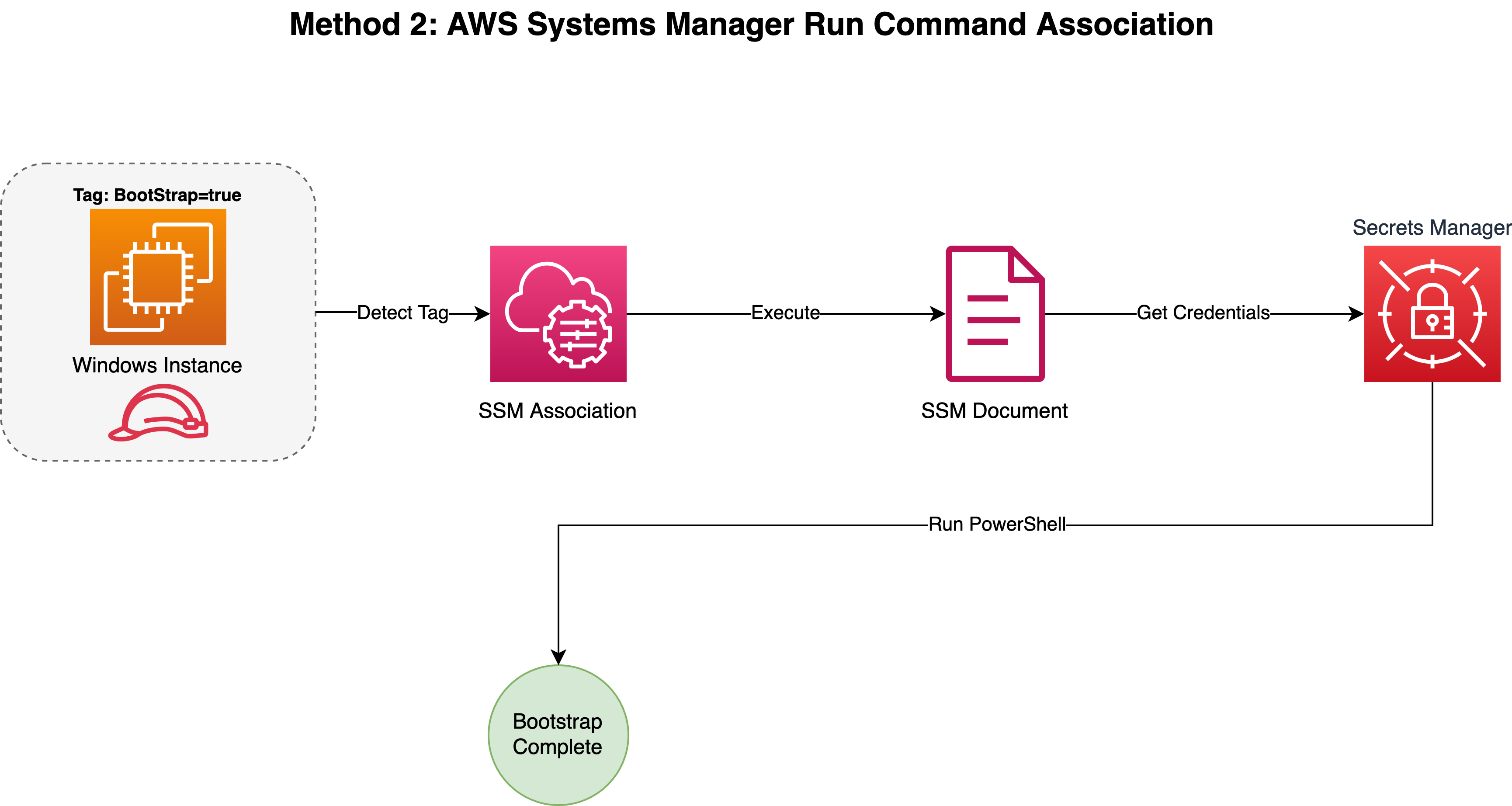
Figure 1: Automated user provisioning with State Manager
In this example, when any instance with the tag Bootstrap: true comes online, the association triggers automatically. It runs a PowerShell script which retrieves credentials from AWS Secrets Manager, creates a TempAdmin user with a randomly generated password, and adds them to the Administrators group.
CloudFormation template walkthrough
The following CloudFormation template automates the entire setup. It creates the following resources:
- AWS Key Management Service (AWS KMS) Key – Encrypts the Secrets Manager secret with automatic key rotation enabled.
- AWS Secrets Manager Secret – Stores the TempAdmin credentials with a randomly generated 16-character password, encrypted using the KMS key.
- AWS Identity and Access Management (IAM) Role and Instance Profile – Grants EC2 instances permission to retrieve the secret from Secrets Manager and decrypt it using the KMS key, along with the
AmazonSSMManagedInstanceCoremanaged policy for Systems Manager connectivity. - Systems Manager Command Document – Defines a PowerShell script that retrieves the credentials from Secrets Manager, creates the TempAdmin local user, and adds them to the Administrators group.
- Systems Manager State Manager Association – Targets all instances with the
Bootstrap: truetag and runs the Systems Manager document automatically when they come online.
Testing the template
Deploy this CloudFormation template. To test the stack, launch an EC2 Windows instance with the Bootstrap: true tag and attach the instance profile from the stack outputs. Verify that the TempAdmin user is created with administrator privileges by checking the AWS Systems Manager Run Command execution logs. You can also confirm access by logging in with the credentials stored in AWS Secrets Manager.
Key considerations
- Associations run once after boot or can be configured to run on a recurring schedule.
- Target instances using tags, instance IDs, resource groups, or all instances (*).
- The instances need to be onboarded to AWS Systems manager.
- Execution results can be logged to Amazon CloudWatch for monitoring.
- AWS Systems Manager Automation documents will not get processed at instance boot when configured with AWS State Manager association. AWS Systems Manager composite documents can be used instead for multi-step configurations.
Method 3: Amazon EventBridge with Systems Manager Run Command – event-driven automation
In some cases, your bootstrap processes might involve more than just running a PowerShell or Bash script at boot. In Method 2, we used a State Manager association to run a PowerShell script at instance boot — creating a TempAdmin user with credentials from Secrets Manager. This works well for standalone configuration tasks, but in some cases, a single script execution might not be sufficient. Your workload may require additional steps after the initial script completes, such as sending notifications, invoking API calls, triggering compliance checks, or launching subsequent automation workflows.
Method 3 extends Method 2 by adding Amazon EventBridge rules that monitor the association execution outcome. When the bootstrap script from Method 2 completes, EventBridge captures the execution status and triggers downstream actions based on whether it succeeded or failed. This enables you to build event-driven workflows that react to your bootstrap results in real time.
Example use case
Building on the State Manager association from Method 2, this example adds EventBridge rules that listen to Systems Manager Run Command completion events. Depending on the execution status (success or failure), each EventBridge rule triggers three targets simultaneously: a Systems Manager Automation document, an Amazon Simple Notification Service (Amazon SNS) topic for email notifications, and a AWS Lambda function. Figure 2 shows the full architecture, and the CloudFormation template below provisions all the required resources.

Figure 2: Event-driven bootstrap automation with EventBridge
CloudFormation template walkthrough
The following CloudFormation template (Figure 2) walks through the entire setup and resources needed for this example. This template builds on Method 2 by adding:
- EventBridge Rules – Two rules that monitor Systems Manager Run Command completion events, one for success and one for failure scenarios.
- SNS Topic – Notification topic for success and failure events, encrypted with KMS. An email subscription delivers notifications to the address provided as a parameter.
- Lambda Functions – One for the success path and one for the failure path. Both functions receive the EventBridge event, extract the target instance ID, and call
ec2:CreateTagsto writeBootstrapLambdaStatus(Success or Failed),BootstrapLambdaProcessedAt(an ISO-8601 timestamp), andBootstrapLambdaProcessedBy(the Lambda function name). This gives you concrete evidence on the instance that the Lambda target fired, and the functions remain a natural extension point for additional logic such as API calls, database updates, or downstream workflow triggers. - Systems Manager Automation Documents – One for the success path and one for the failure path. Both documents use
aws:executeAwsApito callec2:CreateTagsand writeBootstrapAutomationStatus(Success or Failed) andBootstrapAutomationProcessedBy(the Automation execution ID). Because the Automations and the Lambdas write different tag keys, a reader describing the instance can confirm that both targets fired independently and see the contrast between a declarative runbook usingaws:executeAwsApiand a Lambda function using the AWS SDK. - IAM Roles – Dedicated execution roles for EventBridge, Lambda, and Systems Manager Automation, each scoped with least-privilege permissions.
Testing the template
Deploy this CloudFormation template with a valid notification email address. Confirm the SNS subscription by clicking the link in the confirmation email. Launch an EC2 Windows instance with the EventDrivenBootstrap: true tag and attach the instance profile from the stack outputs. When the bootstrap script completes, EventBridge fans out to three targets in parallel. Verify each one:
- Instance tags – Run
aws ec2 describe-tags --filters "Name=resource-id,Values=<instance-id>". You should see five new tags:BootstrapLambdaStatus,BootstrapLambdaProcessedAt,BootstrapLambdaProcessedBy(written by the Lambda), andBootstrapAutomationStatus,BootstrapAutomationProcessedBy(written by the Systems Manager Automation). Seeing both sets confirms that both targets fired independently. - CloudWatch Logs – Open the Lambda function’s log group and confirm it recorded the EventBridge event and logged
Tagged instance <id> with bootstrap success metadata. - Systems Manager Automation execution history – Confirm the success Automation ran and reached Success.
- Email notifications – Check your inbox for the SNS notification with the instance ID, command ID, and execution status.
To test the failure path, remove the EC2 instance’s permission to access Secrets Manager and launch a new tagged instance. The failure rule will fire instead: the failure Lambda and failure Automation write the same five tags but with Status = Failed, and the SNS topic delivers a failure email.
Key considerations
- Separate event rules handle success and failure scenarios independently.
- Each event rule can invoke multiple targets simultaneously (Lambda, Systems Manager Automation, SNS).
- You can build complex, multi-step bootstrap workflows by chaining additional targets or automation documents.
Method 4: Auto Scaling group lifecycle hooks – intelligent instance preparation
In Methods 2 and 3, we bootstrapped instances that were already running and in service. However, if you’re using Amazon EC2 Auto Scaling groups you may need to ensure instances are fully configured before they start accepting traffic. Auto Scaling group lifecycle hooks solve this by intercepting instance launch and termination events, allowing you to perform custom actions before instances enter or leave service (Figure 3).
Example use case
When the Auto Scaling group scales out, the lifecycle hook puts the instance into a wait period, triggering an EventBridge rule. That rule invokes a Systems Manager Automation document. The automation performs the bootstrap processes. In the CloudFormation example, the automation waits for SSM Agent to report ready, renames the computer, and restarts it to apply the changes. Once complete, the automation signals the lifecycle hook to continue, allowing the EC2 instance to enter InService. This prevents instances from joining the Auto Scaling group and accepting traffic while they’re still being bootstrapped or aren’t ready.
In the example CloudFormation template, you will use an Amazon EC2 Auto Scaling warm pool that pre-bootstraps instances and keeps them stopped, ready to be pulled into the Auto Scaling group when scaling out. With a warm pool, the launch lifecycle hook fires twice for the same instance: once when it enters the warm pool (Origin: EC2, Destination: WarmPool) and again when it is promoted to the Auto Scaling group (Origin: WarmPool, Destination: AutoScalingGroup). The Automation branches on the Origin field. New instances from EC2 run the full bootstrap (rename the computer, restart, signal lifecycle continue). Instances promoted from the warm pool skip straight to signaling lifecycle continue so they reach InService quickly without re-running work they already completed.
CloudFormation template walkthrough
The following CloudFormation template provisions all the required resources. It creates:
- Auto Scaling Group with Warm Pool – Configured with min/max capacity and a warm pool that keeps pre-bootstrapped instances in a stopped state for cost optimization.
- Launch and Terminate Lifecycle Hooks – Intercept scaling events to trigger automation before instances enter or leave service.
- EventBridge Rules – Capture lifecycle hook events and invoke the corresponding Systems Manager Automation documents.
- Launch Systems Manager Automation Document – Branches on the Origin parameter passed by EventBridge. If Origin is EC2 (a new instance from EC2), the Automation waits for SSM Agent to report ready, renames the computer, restarts it, and signals the lifecycle hook to continue. If Origin is WarmPool (a pre-warmed instance being promoted into the Auto Scaling group), the Automation skips the bootstrap steps and signals the lifecycle hook to continue immediately so the instance reaches InService quickly.
- Terminate Systems Manager Automation Document – Sends an SNS notification when an instance is being terminated and signals the lifecycle hook to continue.
- SNS Topic – Delivers termination notification emails encrypted with KMS.
- IAM Roles – Scoped roles for EC2 instances, Systems Manager Automation, and EventBridge with least-privilege permissions.

Figure 3: Auto Scaling lifecycle hooks with warm pool bootstrap
Testing the template
Deploy this CloudFormation template with a valid notification email, VPC ID, and subnet IDs, and confirm the SNS subscription from the confirmation email.
To test the launch flow on a brand new instance, set the Auto Scaling group’s desired capacity to 1. The launch hook fires with Origin: EC2, and the Automation runs the full bootstrap (SSM Agent wait, rename, reboot, complete lifecycle). Verify the flow in the Systems Manager Automation execution history: the run should reach Success and include the checkForSSMAgent, RenameComputer, RestartInstance, and CompleteLifecycleActionSuccess steps.
To test the warm pool path, update the warm pool configuration so MinSize is 1. A new instance spins up, is bootstrapped the same way as above, and then stops in the warm pool. Next, raise the ASG desired capacity to 2. The stopped warm pool instance is promoted and the launch hook fires again with Origin: WarmPool. Verify that a new Automation execution appears, completes in a few seconds, and only shows BranchOnOrigin and CompleteLifecycleActionSuccess as executed steps. The bootstrap work is skipped.
To test the terminate lifecycle hook, decrease the desired capacity back to 0. Confirm that you receive an SNS email notification for each terminating instance.
Key considerations
- Warm pool cost optimization: Instances in the warm pool can be stopped to reduce costs while remaining ready for quick deployment. When scaling out, these instances start up and skip the bootstrap process since they’re already configured, significantly reducing the time to InService.
- Origin-based branching: The EventBridge rule forwards the Origin field from the lifecycle event into the Automation as a parameter. The Automation uses aws:branch to decide between running the full bootstrap (
Origin: EC2) or signaling lifecycle continue immediately (Origin: WarmPool). This approach is more reliable than a tag check because Origin is carried in the event itself and is available before the instance has to be queried, and it eliminates the EC2 DescribeTags call that a tag-based guard would require. - Heartbeat timeout: The launch lifecycle hook uses the default heartbeat timeout of 3600 seconds (60 minutes). If the Automation does not complete within this window, the instance is abandoned by default and terminated. You can set
HeartbeatTimeoutexplicitly on the lifecycle hook specification to tighten the window once you know how long your bootstrap reliably takes. The bootstrap steps in this sample (SSM Agent online wait, computer rename, reboot) typically complete in well under 15 minutes. - Failure handling: The launch lifecycle hook uses
DefaultResult: ABANDON, meaning if the automation fails, the instance won’t enter InService. This prevents misconfigured instances from accepting traffic. The terminate lifecycle hook usesDefaultResult: CONTINUE, allowing termination to proceed even if cleanup automation fails.
Conclusion
Successful EC2 bootstrapping requires matching the right method to your scenario. Each of the four methods discussed in this blog serves distinct purposes: user data for simple configurations, AWS Systems Manager State Manager for centralized fleet management, Amazon EventBridge with Systems Manager Run Command for event-driven workflows, and Auto Scaling group lifecycle hooks for ensuring production readiness.
The real power comes from combining these methods strategically. As your workloads grow in complexity, treating bootstrap as a layered approach rather than a single script delivers reliability, observability, and flexibility for complex deployments.