
Sold by: Kestra
Deployed on AWS
AWS Free Tier
Event-Driven Declarative Orchestration Platform
Overview
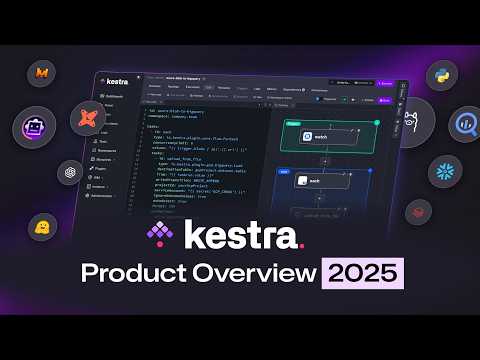
Kestra is an open-source, event-driven orchestration platform that makes both scheduled and event-driven workflows easy. By bringing Infrastructure as Code best practices to data, process, and microservice orchestration, you can build reliable workflows directly from the UI in just a few lines of YAML.
Key Features:
- Everything as Code and from the UI: keep workflows as code with a Git Version Control integration, even when building them from the UI.
- Event-Driven & Scheduled Workflows: automate both scheduled and real-time event-driven workflows via a simple trigger definition.
- Declarative YAML Interface: define workflows using a simple configuration in the built-in code editor.
- Rich Plugin Ecosystem: hundreds of plugins built in to extract data from any database, cloud storage, or API, and run scripts in any language.
- Intuitive UI & Code Editor: build and visualize workflows directly from the UI with syntax highlighting, auto-completion and real-time syntax validation.
- Scalable: designed to handle millions of workflows, with high availability and fault tolerance.
- Version Control Friendly: write your workflows from the built-in code Editor and push them to your preferred Git branch directly from Kestra, enabling best practices with CI/CD pipelines and version control systems.
- Structure & Resilience: tame chaos and bring resilience to your workflows with namespaces, labels, subflows, retries, timeout, error handling, inputs, outputs that generate artifacts in the UI, variables, conditional branching, advanced scheduling, event triggers, backfills, dynamic tasks, sequential and parallel tasks, and skip tasks or triggers when needed by setting the flag disabled to true.
The YAML definition gets automatically adjusted any time you make changes to a workflow from the UI or via an API call. Therefore, the orchestration logic is always managed declaratively in code, even if you modify your workflows in other ways (UI, CI/CD, Terraform, API calls).
Highlights
- Everything as Code and from the UI: keep workflows as code with a Git Version Control integration, even when building them from the UI.
- Event-Driven & Scheduled Workflows: automate both scheduled and real-time event-driven workflows via a simple trigger definition.
- Declarative YAML Interface: define workflows using a simple configuration in the built-in code editor.
Details
Sold by
Delivery method
Delivery option
Kestra CloudFormation Template
Kestra CloudFormation Template: Single AMI Deployment
Latest version
Operating system
Ubuntu 24.04.3
Deployed on AWS
New
Introducing multi-product solutions
You can now purchase comprehensive solutions tailored to use cases and industries.

Features and programs
Financing for AWS Marketplace purchases
AWS Marketplace now accepts line of credit payments through the PNC Vendor Finance program. This program is available to select AWS customers in the US, excluding NV, NC, ND, TN, & VT.

Pricing
This product is available free of charge. Free subscriptions have no end date and may be canceled any time.
Additional AWS infrastructure costs may apply. Use the AWS Pricing Calculator to estimate your infrastructure costs.
If you are an AWS Free Tier customer with a free plan, you are eligible to subscribe to this offer. You can use free credits to cover the cost of eligible AWS infrastructure. See AWS Free Tier for more details. If you created an AWS account before July 15th, 2025, and qualify for the Legacy AWS Free Tier, Amazon EC2 charges for Micro instances are free for up to 750 hours per month. See Legacy AWS Free Tier for more details.
Dimensions summary
The software itself is free. You pay only for the AWS EC2 instance you run it on, billed by the hour. Choose from three instance families: t2, t3, and t3a burstable types, plus m5 general-purpose types. Sizes range from nano and micro up to 2xlarge in the burstable families, and from large up to metal and 24xlarge in the m5 family. Larger instances offer more vCPUs and memory, so hourly rates rise with capacity. The vendor suggests at least 4GiB memory and 2 vCPUs, making t3.medium a common starting point.
Top-of-mind questions for buyers
You pay only the AWS EC2 compute charge for the instance you run. The Kestra software carries no license fee. Your bill reflects the hourly rate of the instance type you pick, times the hours it runs. Larger instances with more vCPUs and memory cost more per hour.
Hourly charges accrue only while the instance runs. A stopped instance stops incurring the hourly compute charge. Note that attached AWS storage, such as EBS volumes or an S3 backend, may still bill separately even when the instance is powered off.
The Open Source edition sets no limit on flows or executions. But heavier or concurrent workloads use more compute, so you may move to an instance with more vCPUs and memory. You change instance type manually; hourly cost then follows the new size you select.
kestra.io+1
Helpful?
Vendor refund policy
This product is offered at no charge for the software portion. No software fees will be billed, and therefore no refunds are required. For any issues or support contact: support@kestra.io

Legal
Vendor terms and conditions
Upon subscribing to this product, you must acknowledge and agree to the terms and conditions outlined in the vendor's End User License Agreement (EULA) .
Content disclaimer
Vendors are responsible for their product descriptions and other product content. AWS does not warrant that vendors' product descriptions or other product content are accurate, complete, reliable, current, or error-free.
Delivery details
Kestra CloudFormation Template
This template automatically provisions an EC2 instance running Kestra with Docker, a PostgreSQL RDS database, and an S3 bucket for storage, all configured and ready to use.
This CloudFormation template provides a fully automated deployment of Kestra, the open-source orchestration and workflow automation platform, within your own AWS account. It provisions all the infrastructure required to run Kestra securely and efficiently on AWS, including an Ubuntu-based EC2 instance preconfigured with Docker, a managed PostgreSQL RDS database for metadata and queue storage, and a private S3 bucket for file storage. Networking and security groups are automatically created to ensure that all components communicate securely while keeping the Kestra web interface accessible through port 8080.
Once the stack creation completes, typically in about ten minutes, Kestra is automatically launched in Docker using a pre-generated configuration file that connects to the provisioned RDS and S3 services. From there, users can access the Kestra web UI directly via the EC2 instance's public IP address to begin defining and executing workflows immediately.
This deployment option is designed for simplicity, zero manual setup, and minimal maintenance. It offers an ideal path for teams that want to evaluate Kestra or quickly and securely deploy a lightweight orchestration environment within their AWS infrastructure.
For more details, visit https://kestra.io/docs
CloudFormation Template (CFT)
AWS CloudFormation templates are JSON or YAML-formatted text files that simplify provisioning and management on AWS. The templates describe the service or application architecture you want to deploy, and AWS CloudFormation uses those templates to provision and configure the required services (such as Amazon EC2 instances or Amazon RDS DB instances). The deployed application and associated resources are called a "stack."
Version release notes
update usage instructions
Additional details
Usage instructions
1: Launch the CloudFormation stack Choose your AWS region (e.g., eu-west-1) and deploy the provided CloudFormation template.
2: Provide required parameters During stack creation, specify: MasterUserPassword: Password for the PostgreSQL database. BasicAuthUser and BasicAuthPassword: Credentials for Kestra web UI. BucketName: Unique name for the S3 bucket. Your existing VPC and subnet IDs. CIDR SSH Range and SSH key pair.
3: Wait for deployment Stack creation takes about 10 minutes. Once complete, the output section will show: EC2PublicIP, the public IP to access Kestra. DBEndpoint, the PostgreSQL endpoint. BucketName, the created S3 bucket name.
4: Access Kestra After the vm has been deployed, wait a couple of minutes more to give time to the vm to setup, the Docker image to be pulled and Kestra to be launched. Then, open your browser and go to http://<EC2PublicIP>:8080 Log in using the credentials you provided (BasicAuthUser / BasicAuthPassword).
5: Start building workflows Kestra is now running on your EC2 instance with full integration to RDS and S3. You can create flows, run tasks, and store artifacts directly in your AWS environment.
6: Clean up (optional) To remove all resources, delete the CloudFormation stack from the AWS Console or via the AWS CLI: aws cloudformation delete-stack --region <your-region> --stack-name <your-stack-name>
Support
Vendor support
AWS infrastructure support
AWS Support is a one-on-one, fast-response support channel that is staffed 24x7x365 with experienced and technical support engineers. The service helps customers of all sizes and technical abilities to successfully utilize the products and features provided by Amazon Web Services.
Similar products

This product has charges associated with it for seller support. Simple, Secure and Supported deployment with the Hossted CLI, for easy self-maintenance.

QuestDB is a high-performance, open-source database for time series data. It focuses on fast ingest, blazingly fast queries and superior developer experience with SQL and open formats such as Apache Parquet. QuestDB is designed from the ground up to operate as close to the hardware as possible, eliminating ingestion bottlenecks and lowering overall hardware requirements.

This product has charges associated with it for seller support. Experience the power of open-source observability with Grafana, fully optimized and supported by Meetrix.io

Interactive dashboards and SQL analytics on any database. 40+ chart types, drag-and-drop dashboard builder, SQL Lab editor, and LDAP or OAuth access control.
Customer reviews
No customer reviews yet
Be the first to review this product . We've partnered with PeerSpot to gather customer feedback. You can share your experience by writing or recording a review, or scheduling a call with a PeerSpot analyst.