AWS Cloud Operations Blog
Troubleshoot AWS Tagging Compliance with AWS Resource Explorer
With AWS Resource Explorer’s immediate resource discovery launch on October 13, 2025, customers can now discover resources from their very first search in Unified Search in the AWS Management Console or the Resource Explorer console. Operations like troubleshooting and problem resolution, making resource changes, investigating resource dependencies, identifying security risks, and optimizing costs are critical everyday activities for the cloud operations team. With resource search, customers can find resources they want to act on faster. Immediate resource discovery eliminates the requirement to turn on Resource Explorer to begin finding resources.
In this blog, we will walk through two scenarios:
First, you are a customer who noticed that your total AWS bill for production resources does not match the sum of costs when grouped by Tag Key = costCenter. You think this could be due to resources that are either missing the required Tag Key = costCenter or have incorrect tag values. You want to identify and remediate any non-compliant resources to ensure accurate cost allocation.
Second, you are a customer whose team cannot access certain production resources that should be available to them based on your use of Attribute-Based Access Control (ABAC) for resources that are tagged with environment = prod. You want to investigate and resolve why ABAC is not working as intended.
Note: In both scenarios, you have at minimum, the permissions in the AWSResourceExplorerFullAccess managed policy.
Scenario 1: You are a customer who noticed that your total AWS bill does not match the sum of costs when grouped by Tag Key = costCenter. You want to ensure all your resources tagged with environment = prod also have a corresponding Tag Key = costCenter to accurately track spending.
To get started, you search for a resource in your account, for example ‘SNS’, by typing in Unified Search at the top of the Management Console. Immediately, you can start to see resource results in the Region you are searching in (e.g., us-east-1). You navigate to ‘Show more in Resource Explorer’ to see more resources.
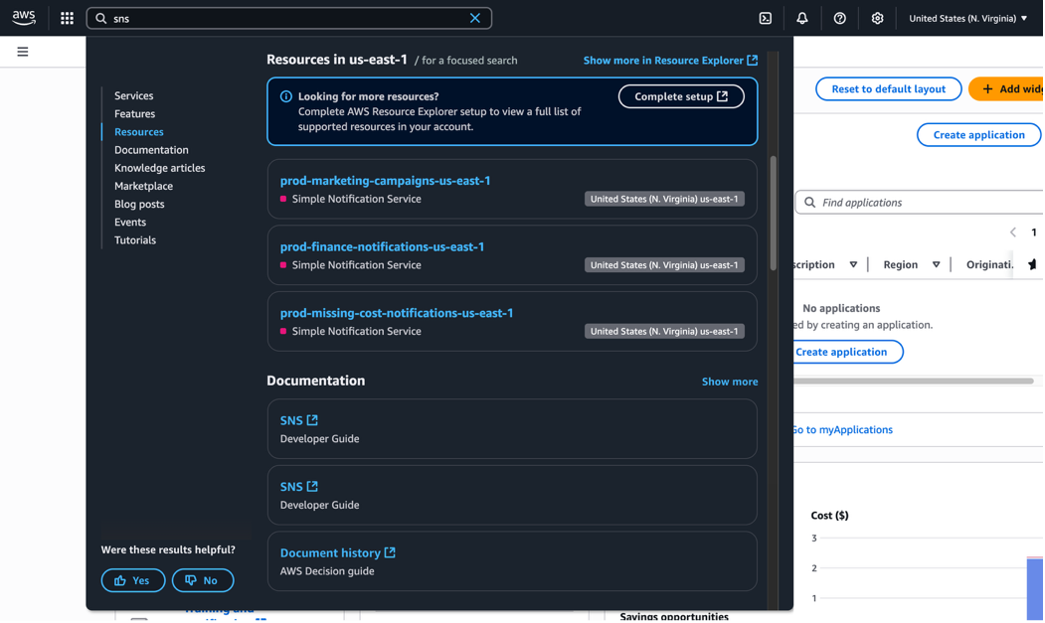
Figure 1. Searching for ‘SNS’ in Unified Search returns regional resource results.
In the Resource Explorer console, you can see resource results filtered to those that match your query (search) using the index and view in us-east-1. You can remove the ‘SNS’ query to see resources across different services. Additionally, you see a call to action to enable cross-Region search in a banner on top of the Console. To learn more about indexes and views, visit Terms and concepts for Resource Explorer.

Figure 2. One-click to enable cross-Region search in all Regions.
When operating in multiple Regions (e.g., us-east-1, us-west-2, and eu-west-1), you can click to enable cross-Region search so that you can see resources both cross-Service and cross-Region in your account. To learn more about how to setup cross-Region search, visit Enabling cross-Region search by creating an aggregator index.
Enabling cross-Region search in all Regions indexes data from all Regions in your account and consolidates the data into your selected aggregator Region. After indexing completes, you can search for resources with the tag environment= prod and missing the Tag Key = costCenter (tag:environment=prod -tag.key:costcenter). You see 9 resources across different services and Regions that are out of compliance with your company’s tagging strategy. You can follow-up with the correct teams to get these assigned and tagged to the appropriate cost centers.
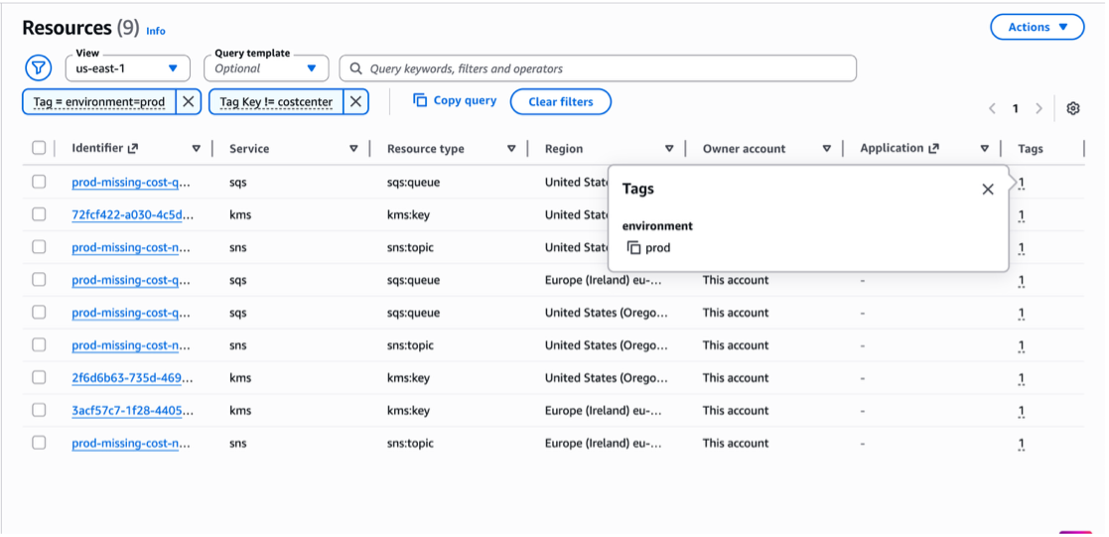
Figure 3. Search for resources that have the tag environment = prod and are missing the Tag Key= costCenter.
Scenario 2: Your team cannot access certain production resources that should be available to them based on your use of Attribute-Based Access Control (ABAC) for resources that are tagged with environment = prod.
In the Resource Explorer console from your cross-Region view (where your aggregator index is), you search for all resources tagged environment = prod.
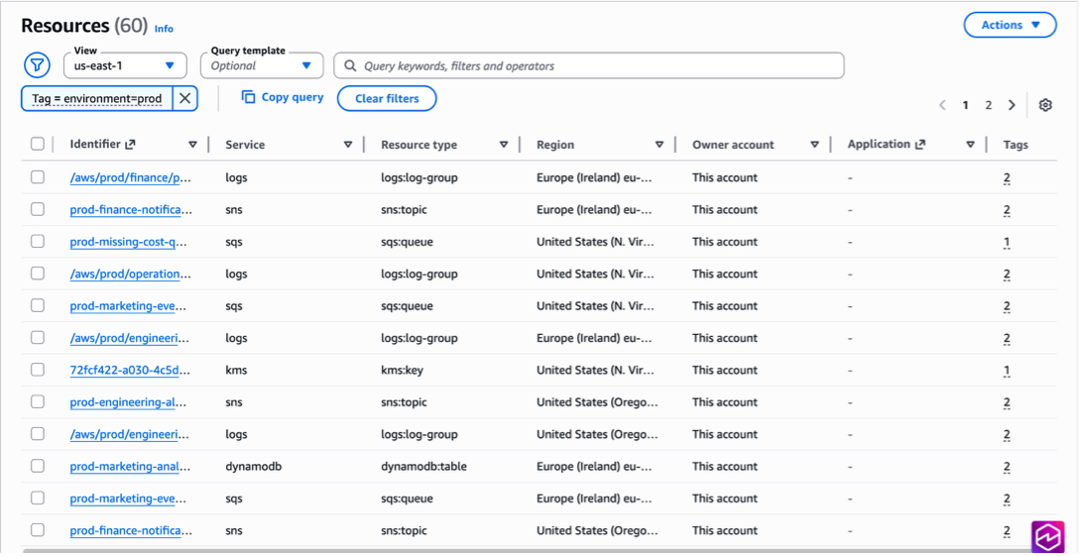
Figure 4. Search for all resources with tag environment = prod.
You select all returned resources using the check box in the top left and click the Actions button in the top right. You select ‘Manage tags’ to learn more about the tags on these resources.
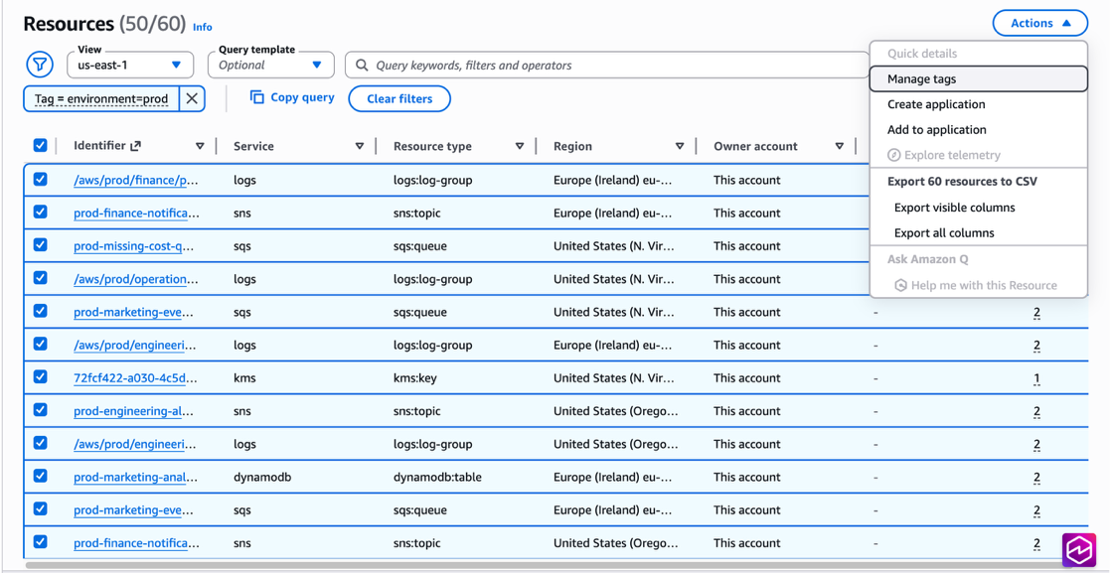
Figure 5. Select ‘Manage tags’ from the Actions menu to act on multiple selected resources.
From the ‘Manage Tags’ panel, you can inspect the values for the environment tag key. You see that there are two current values: 1) prod, and 2) Prod. Your company’s best practice is for tags to be lowercase or camelCase and this capitalization error is the root cause of the access issues for your team.
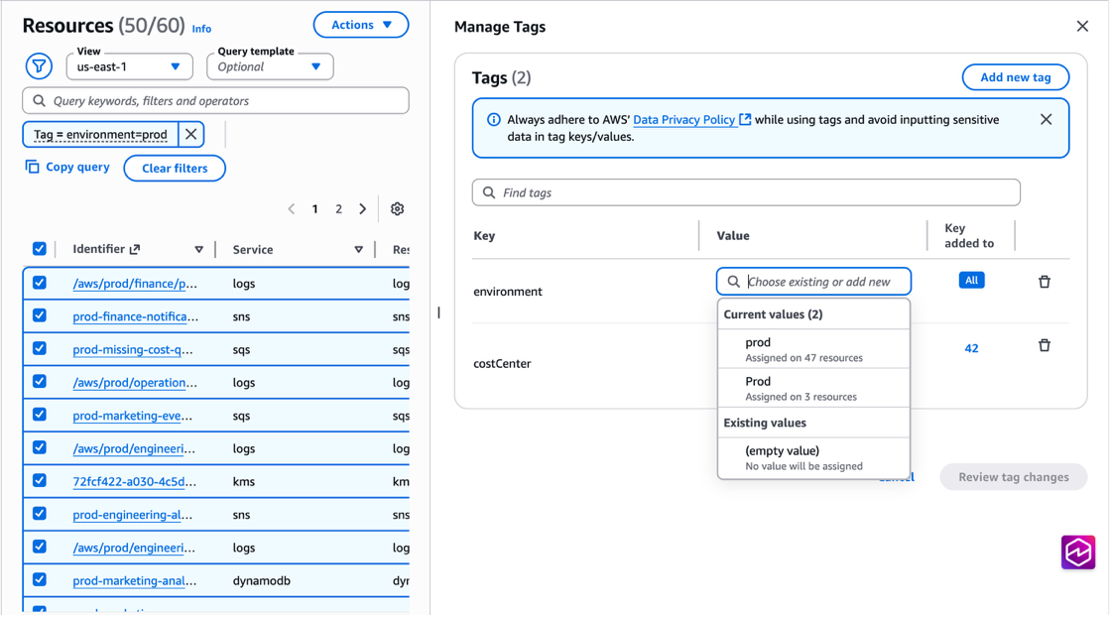
Figure 6. A capitalization error in your tag value (prod vs. Prod) is causing access issues.
You select the lower-case prod value to normalize the tag across your selected resources and select ‘Review tag changes’.
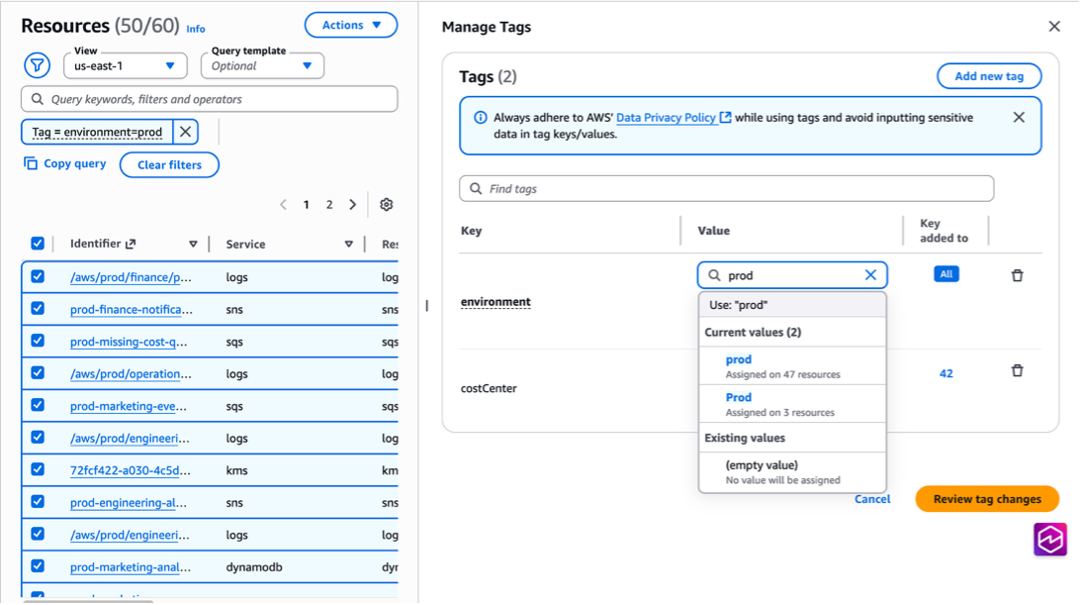
Figure 7. Select the lowercase prod value to normalize the tag across your resources.
You hit ‘Confirm and apply tag changes’ in the modal to apply the update to your selected resources.
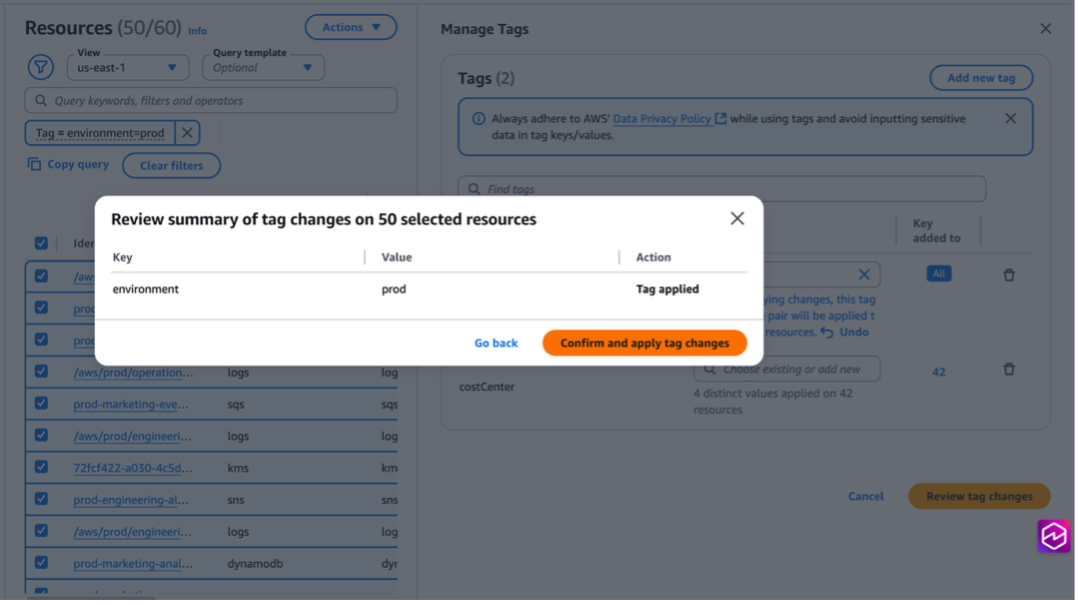
Figure 8. Confirm and apply the tag change across your resources.
A green banner appears when your tags have updated successfully. Now, your team has access to all the prod resources in the account and you have corrected the tagging on non-compliant resources.
(Note: The Action ‘Manage tags’ is only available for taggable resources within a single account.)
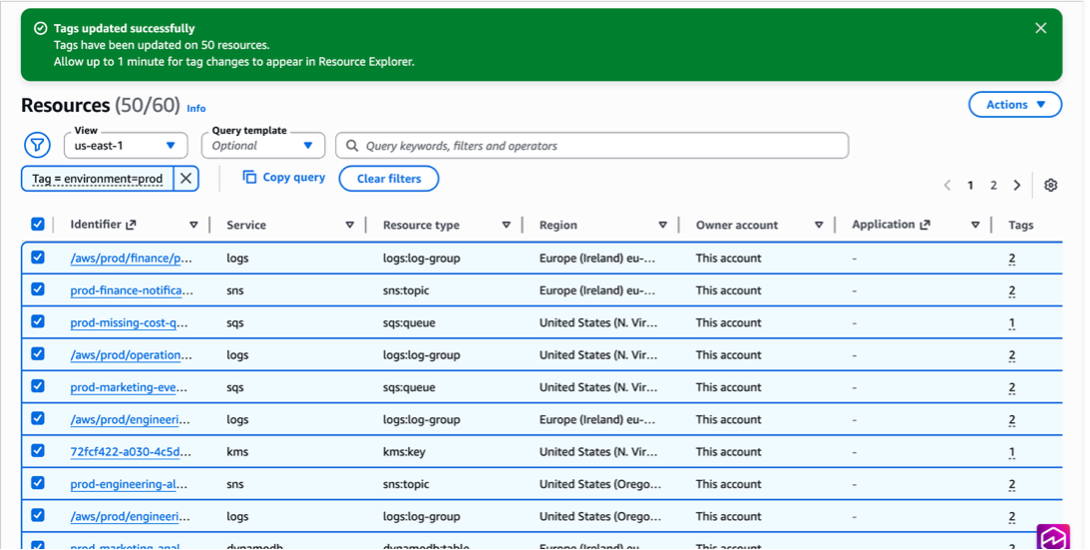
Figure 9. A green banner at the top of the console shows the tags are updated successfully.
Conclusion
AWS Resource Explorer is a search and discovery tool that helps you find and manage your AWS resources. It provides immediate visibility into your resources without requiring initial setup, simplifying cloud resource management. This feature is available at no additional cost in all AWS Regions where Resource Explorer is supported. To begin exploring your resources, visit the AWS Resource Explorer console or check the documentation and product page for more information.