AWS Database Blog
Automate the export of Amazon RDS for MySQL or Amazon Aurora MySQL audit logs to Amazon S3 with batching or near real-time processing
Audit logging has become a crucial component of database security and compliance, helping organizations track user activities, monitor data access patterns, and maintain detailed records for regulatory requirements and security investigations. Database audit logs provide a comprehensive trail of actions performed within the database, including queries executed, changes made to data, and user authentication attempts. Managing these logs is more straightforward with a robust storage solution such as Amazon Simple Storage Service (Amazon S3).
Amazon Relational Database Service (Amazon RDS) for MySQL and Amazon Aurora MySQL-Compatible Edition provide built-in audit logging capabilities, but customers might need to export and store these logs for long-term retention and analysis. Amazon S3 offers an ideal destination, providing durability, cost-effectiveness, and integration with various analytics tools.
In this post, we explore two approaches for exporting MySQL audit logs to Amazon S3: either using batching with a native export to Amazon S3 or processing logs in real time with Amazon Data Firehose.
Solution overview
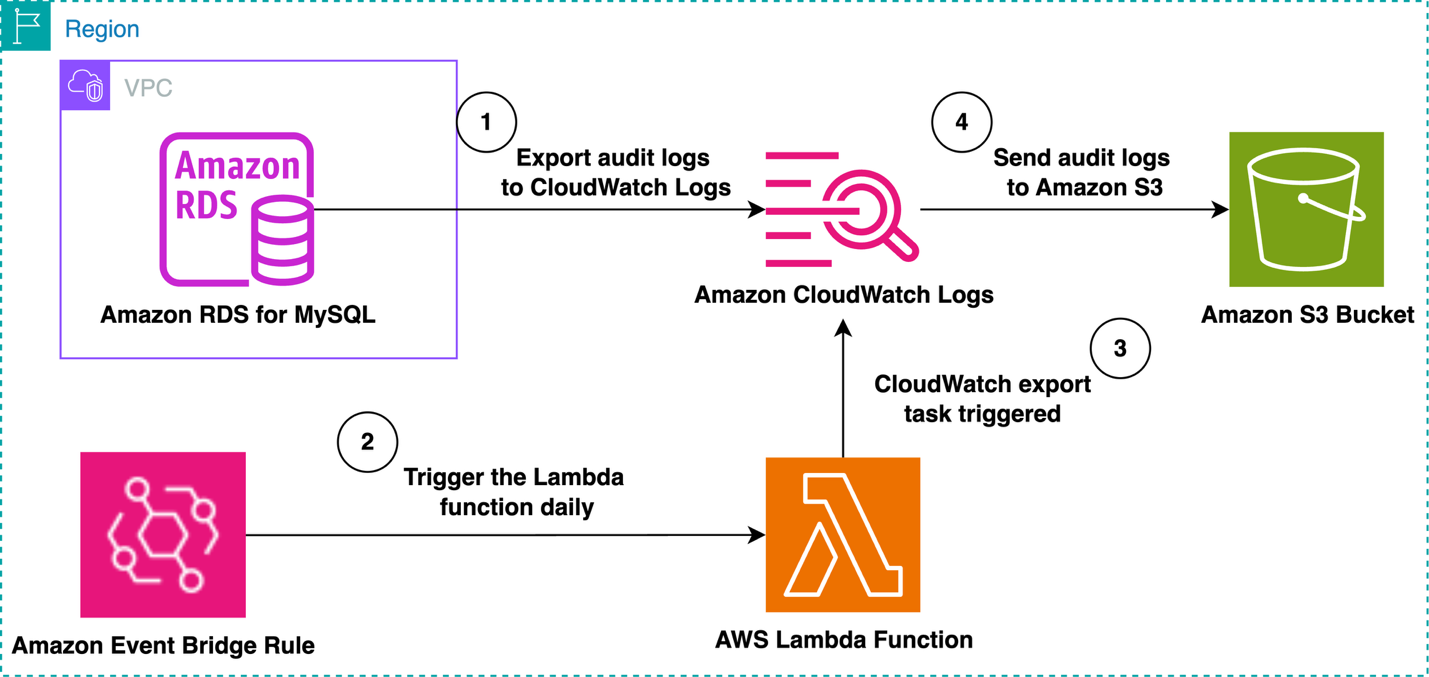
The first solution involves batch processing by using the built-in audit log export feature in Amazon RDS for MySQL or Aurora MySQL-Compatible to export logs to Amazon CloudWatch Logs. Amazon EventBridge periodically triggers an AWS Lambda function. This solution creates a CloudWatch export task that sends the last one days’s of audit logs to Amazon S3. The period (one day) is configurable based on your requirements. This solution is the most cost-effective and practical if you don’t require the audit logs to be available in real-time within an S3 bucket. The following diagram illustrates this workflow.
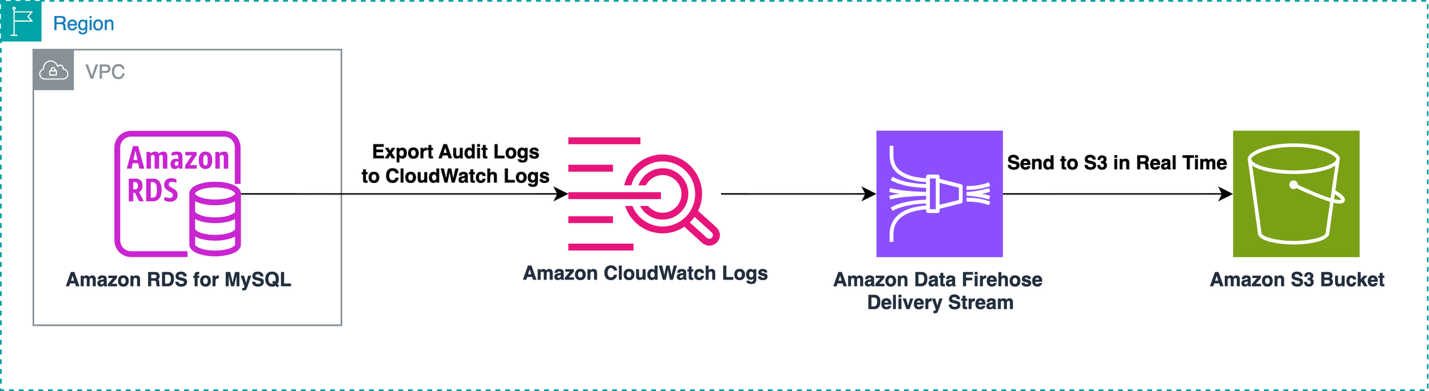
The other proposed solution uses Data Firehose to immediately process the MySQL audit logs within CloudWatch Logs and send them to an S3 bucket. This approach is suitable for business use cases that require immediate export of audit logs when they’re available within CloudWatch Logs. The following diagram illustrates this workflow.
Use cases
Once you’ve implemented either of these solutions, you’ll have your Aurora MySQL or RDS for MySQL audit logs stored securely in Amazon S3. This opens up a wealth of possibilities for analysis, monitoring, and compliance reporting. Here’s what you can do with your exported audit logs:
- Run Amazon Athena queries: With your audit logs in S3, you can use Amazon Athena to run SQL queries directly against your log data. This allows you to quickly analyze user activities, identify unusual patterns, or generate compliance reports. For example, you could query for all actions performed by a specific user, or find all failed login attempts within a certain time frame.
- Create Amazon Quick Sight dashboards: Using Amazon Quick Sight in conjunction with Athena, you can create visual dashboards of your audit log data. This can help you spot trends over time, such as peak usage hours, most active users, or frequently accessed database objects.
- Set up automated alerting: By combining your S3-stored logs with AWS Lambda and Amazon SNS, you can create automated alerts for specific events. For instance, you could set up a system to notify security personnel if there’s an unusual spike in failed login attempts or if sensitive tables are accessed outside of business hours.
- Perform long-term analysis: With your audit logs centralized in S3, you can perform long-term trend analysis. This could help you understand how database usage patterns change over time, informing capacity planning and security policies.
- Meet compliance requirements: Many regulatory frameworks require retention and analysis of database audit logs. With your logs in S3, you can easily demonstrate compliance with these requirements, running reports as needed for auditors.
By leveraging these capabilities, you can turn your audit logs from a passive security measure into an active tool for database management, security enhancement, and business intelligence.
Comparing solutions
The first solution used EventBridge to periodically trigger a Lambda function. This function creates a CloudWatch Log export task that sends a batch of log data to Amazon S3 at regular intervals. This method is well-suited for scenarios where you prefer to process logs in batches to optimize costs and resources.
The second solution uses Data Firehose to create a real-time audit log processing pipeline. This approach streams logs directly from CloudWatch to an S3 bucket, providing near real-time access to your audit data. In this context, “real-time” means that log data is processed and delivered synchronously as it is generated, rather than being sent in a pre-defined interval. This solution is ideal for scenarios requiring immediate access to log data or for high-volume logging environments.
Whether you choose the near real-time streaming approach or the scheduled export method, you will be well-equipped to managed your Aurora MySQL and RDS for MySQL audit logs effectively.
Prerequisites for both solutions
Before getting started, complete the following prerequisites:
- Create or have an existing RDS for MySQL instance or Aurora MySQL cluster.
- Enable audit logging:
- For Amazon RDS, add the MariaDB Audit Plugin within your option group.
- For Aurora, enable Advanced Auditing within your parameter group.
Note: In audit logging, by default all users are logged which can potentially be costly.
- Publish MySQL audit logs to CloudWatch Logs.
- Make sure you have a terminal with the AWS Command Line Interface (AWS CLI) installed or use AWS CloudShell within your console.
- Create an S3 bucket to store the MySQL audit logs using the below AWS CLI command:
aws s3api create-bucket --bucket <bucket_name>
After the command is complete, you will see an output similar to the following:
Note: Each solution has specific service components which are discussed in their respective sections.
Solution #1: Peform audit log batch processing with EventBridge and Lambda
In this solution, we create a Lambda function to export your audit log to Amazon S3 based on the schedule you set using EventBridge Scheduler. This solution offers a cost-efficient way to transfer audit log files within an S3 bucket in a scheduled manner.
Create IAM role for EventBridge Scheduler
The first step is to create an AWS Identity and Access Management (IAM) role responsible for allowing EventBridge Scheduler to invoke the Lambda function we will create later. Complete the following steps to create this role:
- Connect to a terminal with the AWS CLI or CloudShell.
- Create a file named
TrustPolicyForEventBridgeScheduler.jsonusing your preferred text editor:
nano TrustPolicyForEventBridgeScheduler.json
- Insert the following trust policy into the JSON file:
Note: Make sure to amend SourceAccount before saving into a file. The condition is used to prevents unauthorized access from other AWS accounts.
- Create a file named
PermissionsForEventBridgeScheduler.jsonusing your preferred text editor:
nano PermissionsForEventBridgeScheduler.json
- Insert the following permissions into the JSON file:
Note: Replace <LambdaFunctionName> with the name of the function you’ll create later.
- Use the following AWS CLI command to create the IAM role for EventBridge Scheduler to invoke the Lambda function:
- Create the IAM policy and attach it to the previously created IAM role:
In this section, we created an IAM role with appropriate trust and permissions policies that allow EventBridge Scheduler to securely invoke Lambda functions from your AWS account. Next, we’ll create another IAM role that defines the permissions that your Lambda function needs to execute its tasks.
Create IAM role for Lambda
The next step is to create an IAM role responsible for allowing Lambda to put records from CloudWatch into your S3 bucket. Complete the following steps to create this role:
- Connect to a terminal with the AWS CLI or CloudShell.
- Create and write to a JSON file for the IAM trust policy using your preferred text editor:
nano TrustPolicyForLambda.json
- Insert the following trust policy into the JSON file:
- Use the following AWS CLI command to create the IAM role for Lambda to insert records from CloudWatch to Amazon S3:
- Create a file named
PermissionsForLambda.jsonusing your preferred text editor:
nano PermissionsForLambda.json
- Insert the following permissions into the JSON file:
- Create the IAM policy and attach it to the previously created IAM role:
Create ZIP file for the Python Lambda function
To create a file with the code the Lambda function will invoke, complete the following steps:
- Create and write to a file named
lambda_function.pyusing your preferred text editor:
nano lambda_function.py
- Within the file, insert the following code:
- Zip the file using the following command:
zip function.zip lambda_function.py
Create Lambda function
Complete the following steps to create a Lambda function:
- Connect to a terminal with the AWS CLI or CloudShell.
- Run the following command, which references the zip file previously created:
The NDAYS variable in the preceding command will determine the dates of audit logs exported per invocation of the Lambda function. For example, if you plan on exporting logs one time per day to Amazon S3, set NDAYS=1, as shown in the preceding command.
- Add concurrency limits to keep executions in control:
Note: Reserved concurrency in Lambda sets a fixed limit on how many instances of your function can run simultaneously, like having a specific number of workers for a task. In this database export scenario, we’re limiting it to 2 concurrent executions to prevent overwhelming the database, avoid API throttling, and ensure smooth, controlled exports. This limitation helps maintain system stability, prevents resource contention, and keeps costs in check
In this section, we created a Lambda function that will handle the CloudWatch log exports, configured its essential parameters including environment variables, and set a concurrency limit to ensure controlled execution. Next, we’ll create an EventBridge schedule that will automatically trigger this Lambda function at specified intervals to perform the log exports.
Create EventBridge schedule
Complete the following steps to create an EventBridge schedule to invoke the Lambda function at an interval of your choosing:
- Connect to a terminal with the AWS CLI or CloudShell.
- Run the following command:
The schedule-expression parameter in the preceding command must be equal to the environmental variable NDAYS in the previously created Lambda function.
This solution provides an efficient, scheduled approach to exporting RDS audit logs to Amazon S3 using AWS Lambda and EventBridge Scheduler. By leveraging these serverless components, we’ve created a cost-effective, automated system that periodically transfers audit logs to S3 for long-term storage and analysis. This method is particularly useful for organizations that need regular, batch-style exports of their database audit logs, allowing for easier compliance reporting and historical data analysis.
While the first solution offers a scheduled, batch-processing approach, some scenarios require a more real-time solution for audit log processing. In our next solution, we’ll explore how to create a near real-time audit log processing system using Amazon Kinesis Data Firehose. This approach will allow for continuous streaming of audit logs from RDS to S3, providing almost immediate access to log data.
Solution 2: Create near real-time audit log processing with Amazon Data Firehose
In this section, we review how to create a near real-time audit log export to Amazon S3 using the power of Data Firehose. With this solution, you can directly load the latest audit log files to an S3 bucket for quick analysis, manipulation, or other purposes.
Create IAM role for CloudWatch Logs
The first step is to create an IAM role responsible for allowing CloudWatch Logs to put records into the Firehose delivery stream (CWLtoDataFirehoseRole). Complete the following steps to create this role:
- Connect to a terminal with the AWS CLI or CloudShell.
- Create and write to a JSON file for the IAM trust policy using your preferred text editor:
nano TrustPolicyForCWL.json
- Insert the following trust policy into the JSON file:
- Create and write to a new JSON file for the IAM permissions policy using your preferred text editor:
nano PermissionsForCWL.json
- Insert the following permissions into the JSON file:
- Use the following AWS CLI command to create the IAM role for CloudWatch Logs to insert records into the Firehose delivery stream:
- Create the IAM policy and attach it to the previously created IAM role:
Create IAM role for Firehose delivery stream
The next step is to create an IAM role (DataFirehosetoS3Role) responsible for allowing the Firehose delivery stream to insert the audit logs into an S3 bucket. Complete the following steps to create this role:
- Connect to a terminal with the AWS CLI or CloudShell.
- Create and write to a JSON file for the IAM trust policy using your preferred text editor:
nano PermissionsForCWL.json
- Insert the following trust policy into the JSON file:
- Create and write to a new JSON file for the IAM permissions using your preferred text editor:
nano PermissionsForCWL.json
- Insert the following permissions into the JSON file:
- Use the following AWS CLI command to create the IAM role for Data Firehose to perform operations on the S3 bucket:
- Create the IAM policy and attach it to the previously created IAM role:
Create the Firehose delivery stream
Now you create the Firehose delivery stream to allow near real-time transfer of MySQL audit logs from CloudWatch Logs to your S3 bucket. Complete the following steps:
- Create the Firehose delivery stream with the following AWS CLI command. Setting the buffer interval and size determines how long your data is buffered before being delivered to the S3 bucket. For more information, refer to AWS documentation. In this example, we use the default values:
- Wait until the Firehose delivery stream becomes active (this might take a few minutes). You can use the Firehose CLI
describe-delivery-streamcommand to check the status of the delivery stream. Note theDeliveryStreamDescription.DeliveryStreamARNvalue, to use in a later step:
aws firehose describe-delivery-stream --delivery-stream-name <delivery-stream-name>
- After the Firehose delivery stream is in an active state, create a CloudWatch Logs subscription filter. This subscription filter immediately starts the flow of near real-time log data from the chosen log group to your Firehose delivery stream. Make sure to provide the log group name that you want to push to Amazon S3 and properly copy the
destination-arnof your Firehose delivery stream:
Your near real-time MySQL audit log solution is now properly configured and will begin delivering MySQL audit logs to your S3 bucket through the Firehose delivery stream.
Clean up
To clean up your resources, complete the following steps (depending on which solution you used):
- Delete the RDS instance or Aurora cluster.
- Delete the Lambda functions.
- Delete the EventBridge rule.
- Delete the S3 bucket.
- Delete the Firehose delivery stream.
Conclusion
In this post, we’ve presented two solutions for managing Aurora MySQL or RDS for MySQL audit logs, each offering unique benefits for different business use cases.
We encourage you to implement these solutions in your own environment and share your experiences, challenges, and success stories in the comments section. Your feedback and real-world implementations can help fellow AWS users choose and adapt these solutions to best fit their specific audit logging needs.